Portal Guide
The Fedshi developer console at https://console.idp.fedshi.com is your home base on DevsPortal. It's built on Backstage and branded as Fedshi, and it gives you a single place to discover, create, deploy, and observe everything you own. This page is a tour of where things live.
DevsPortal is built on the Control Plane Operator engine, and the console is
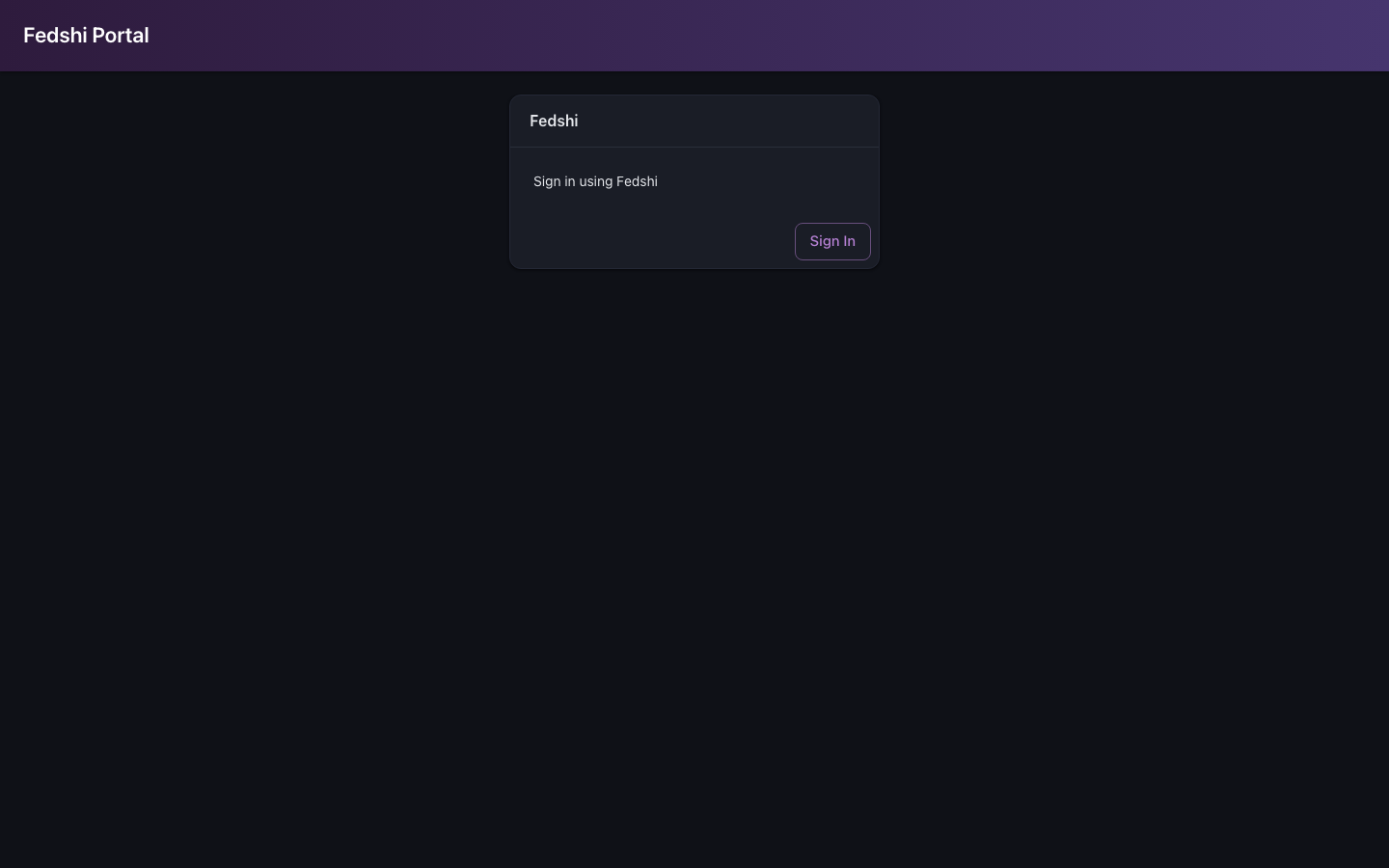
the Control Plane Operator Backstage portal. The auth button reads "Sign in using Fedshi"
but the provider id behind it is the unchanged openchoreo-auth.
Signing in
Open https://console.idp.fedshi.com and click Sign in using Fedshi. You're handed to the identity provider at https://auth.idp.fedshi.com and bounced back signed in. Full detail, including default credentials and changing your password, is in Getting access.
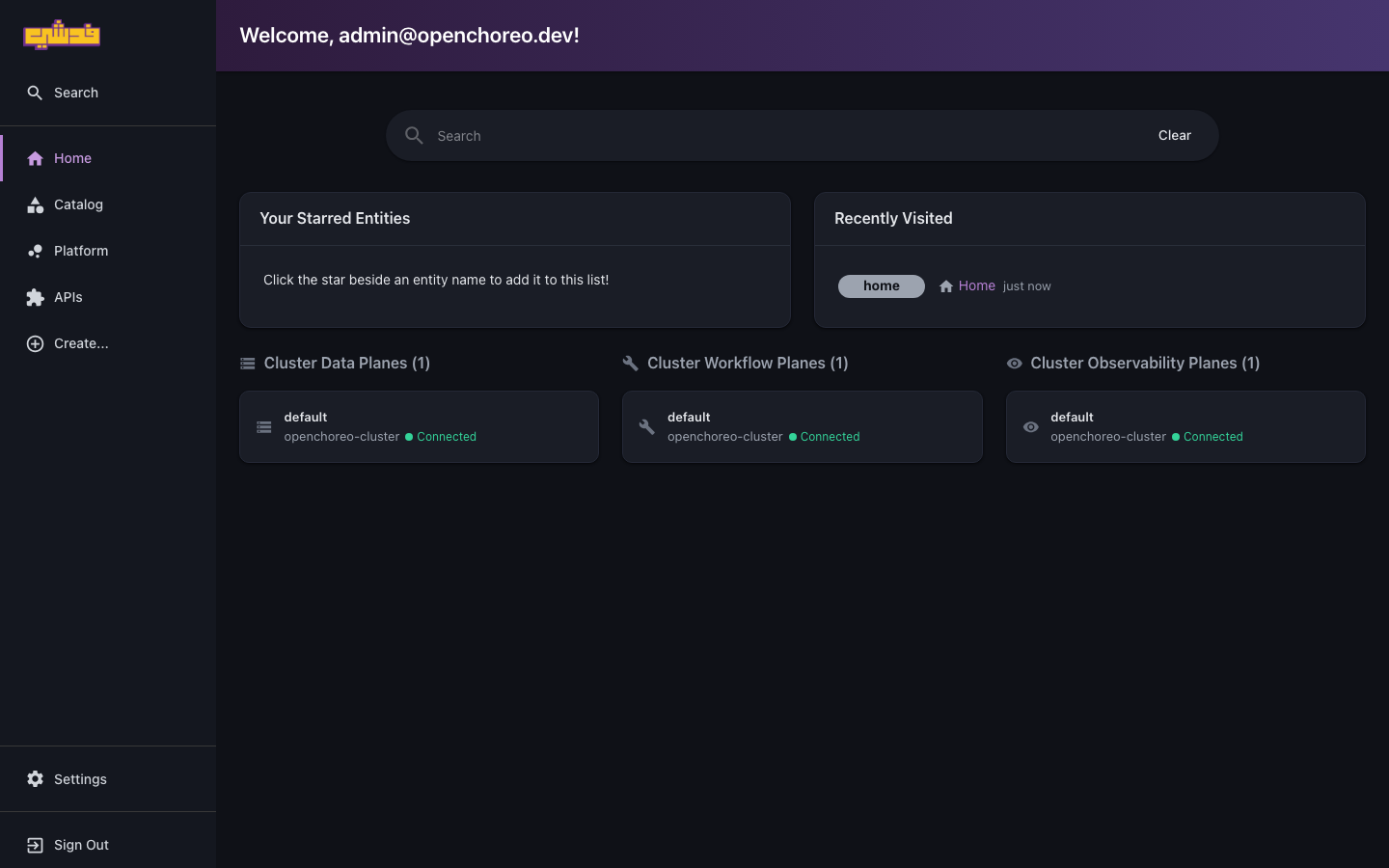
You land on the home page — a search box, your starred and recently-visited entities, and the platform's health (the connected data, workflow, and observability planes). The left sidebar (Search, Home, Catalog, Platform, APIs, Create…) is your primary navigation; Settings and Sign Out sit at the bottom.
The software catalog
The catalog is the index of everything on the platform — your Projects, Components, the APIs they expose, and the teams that own them. Use it to:
- Browse and search for a component by name, owner, or type.
- Filter to what's yours — the "owned" views key off the
backstage.io/ownerannotation, so a well-annotated project surfaces your team's components in one click. See Ownership model. - Jump to an entity page for any component to see its details, deployment status, and logs.
Each Project and Component is a catalog entity; the APIs a component exposes (derived from its endpoints) appear as API entities under it.
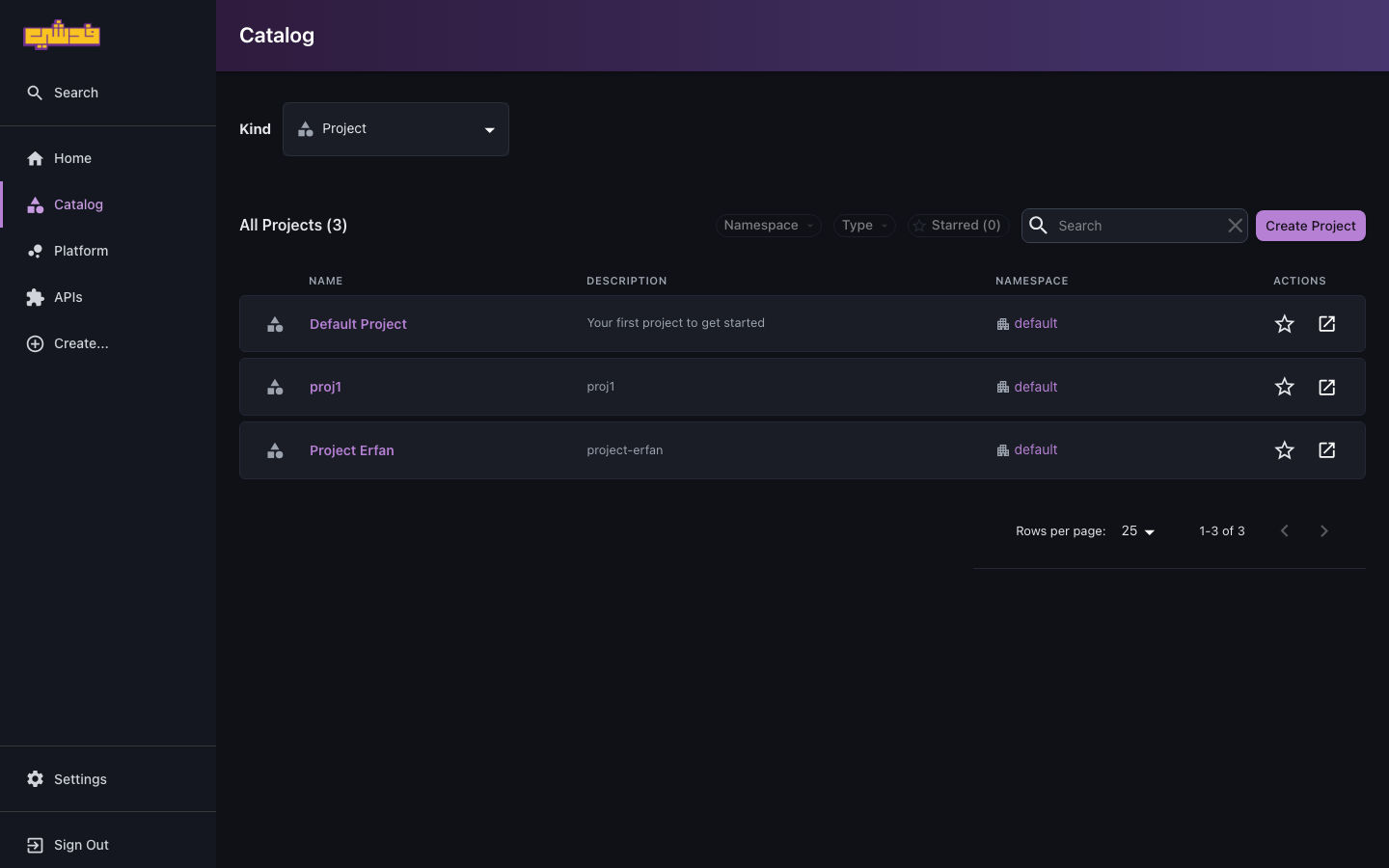
The Kind dropdown switches between Projects, Components, and the other entity kinds; the search box and the Namespace / Type / Starred filters narrow the list.
Creating things — the scaffolder
The Create flow (the "+" / "Create" action) runs guided wizards — Backstage scaffolder templates — that produce real platform resources, not just files. The two you'll use most:
- Create Project — name it, pick a deployment pipeline, and it appears in the catalog immediately. See Projects and components.
- Create Component — the 3-step wizard: metadata, then Build & Deploy (prebuilt image, build-from-source, or external CI), then ComponentType-specific details (parameters, endpoints, env vars, files, traits). See Projects and components.
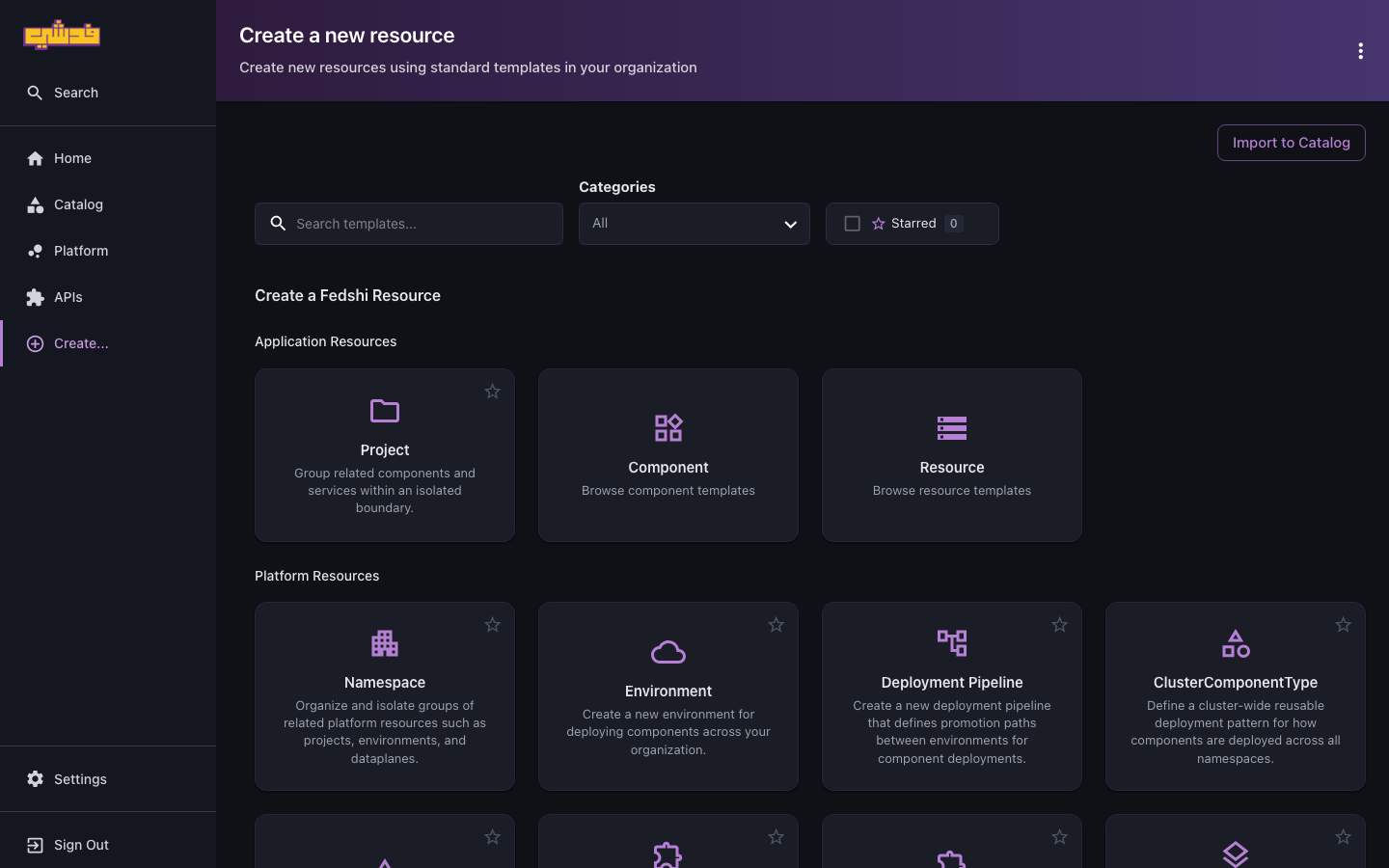
The Create… page groups templates into Application Resources (Project, Component, Resource — what developers use) and Platform Resources (Namespace, Environment, Deployment Pipeline, ClusterComponentType, and more — what platform engineers use). Your platform engineers can publish additional scaffolder templates — a "new Fedshi microservice" golden-path template, say — so check the Create menu for instance-specific options.
The entity page: tabs you'll live in
Open any Component and you get a set of tabs:
| Tab | What it's for |
|---|---|
| Overview | Metadata, owner, ComponentType, links, and the component's APIs |
| Deploy | A card per environment — status, image, release, endpoint URLs; Deploy, Promote, Undeploy, the overrides gear, and View K8s Artifacts |
| Builds | CI runs, their steps, and live build logs (for build-from-source components) |
| Logs | Search and filter runtime logs by environment, time, and keyword |
| Metrics / Alerts | Graphs and fired alerts (when the observability plane is configured) |
The Deploy and Logs tabs map one-to-one onto the workflows in Deploy and promote and Observability — everything you can do there with the CLI, you can do here by clicking.
Secret management
The Secret Management page is where you create and reuse credentials — most commonly git credentials for private-repo builds. You can pre-create a secret here, or create one inline during component creation. Details in Builds and CI → private repositories.
Ownership
Ownership shows on every Project and Component page as the Owner field, resolved from
the backstage.io/owner annotation (with project ownership cascading to its components).
Setting it correctly is what makes the "owned by my team" catalog filters work. The model
and how to set it are covered in Ownership model.
Access control
Under Settings → Access Control, admins manage Roles, Role Bindings, and browse Actions. This is where a team admin grants you the permissions you need and where the RBAC model is administered. As a developer you mostly receive access here; the full model is in Roles and access.
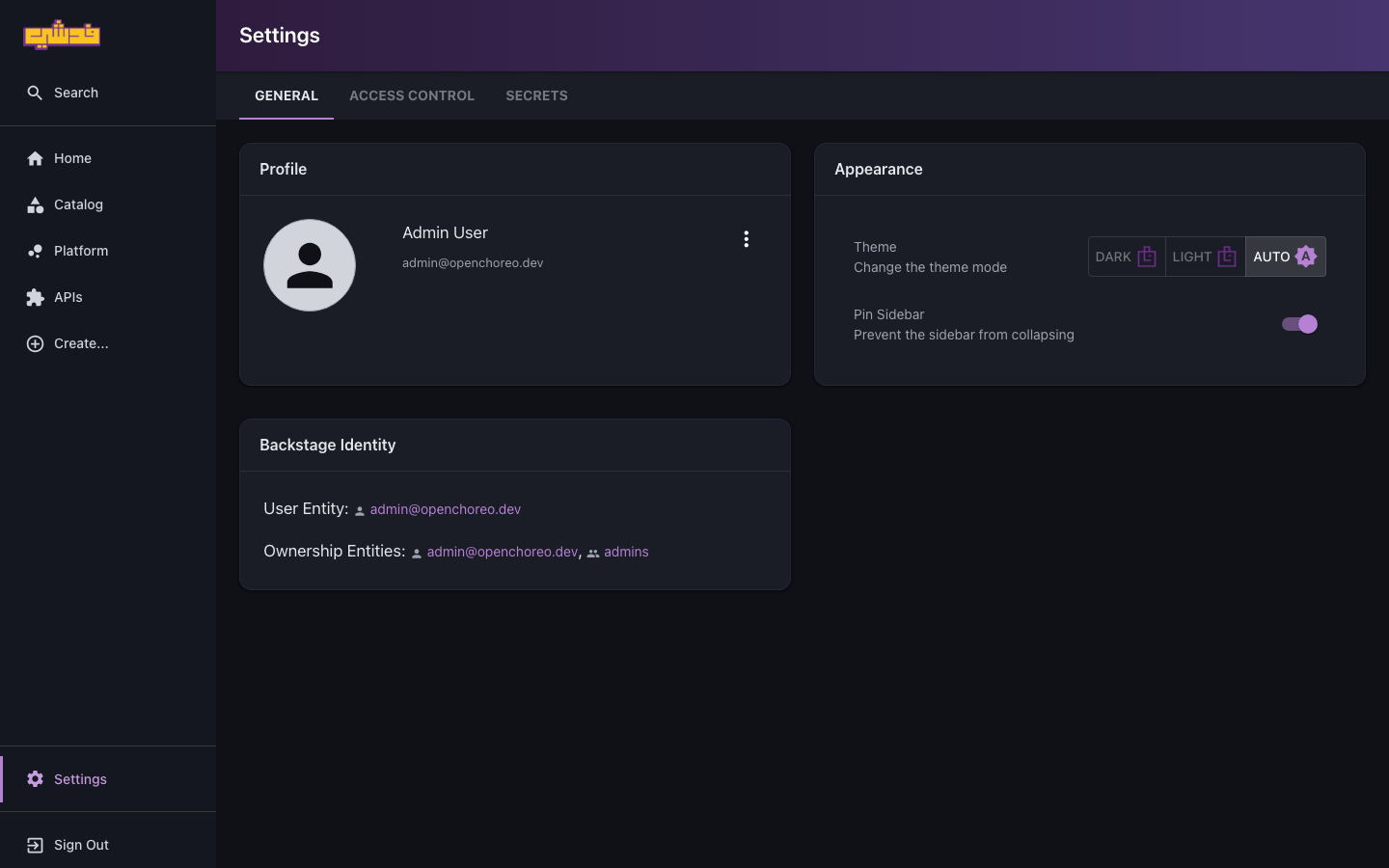
The Settings page also shows your profile and Backstage Identity (your user entity and the groups you own — what the catalog's "owned by me" filters key off), and an Appearance section with the Fedshi-themed Dark / Light / Auto picker:
Portal vs CLI
The console and occ drive the same API and produce the same resources. Reach for the
console for discovery, onboarding, and one-off clicks; reach for the
CLI for automation and repeatability. Move between them freely.
What's next
- Quickstart — do a full create-deploy-observe loop in the console.
- CLI reference — the same actions from the terminal.
- The portal is the Control Plane Operator Backstage portal; its plugin source lives upstream at https://github.com/openchoreo/backstage-plugins.